Modern Angular 13: Writable Signals for Search State

This is lesson 13 of the Modern Angular Course. In the previous lesson, we used @if and @else to conditionally render UI in the product card. Now we turn to user interaction by adding a search input that stores its value in a writable signal.
This post is part of the Modern Angular Course series. Check the course page for the full episode list.
In this post, we cover:
- Adding a search input to the products grid
- Storing search state in a writable signal
- Two-way binding with
ngModeland how it works with signals - Updating signal values with
setandupdate - Styling the search field with Angular Material
Why Store Search State in a Signal?
In lesson 5, we introduced writable signals as reactive state containers. We used a simple counter to demonstrate signal(), set(), and update(). Now we apply the same concept to a real UI feature: a search input.
Before signals, local component state was usually a regular class property. That works, but writable signals give us a more explicit reactive model:
- State lives in a signal
- Reads are explicit with
() - Updates are explicit with
setorupdate
This makes state changes predictable and easy to trace. In this lesson we store the search term in a writable signal, and in the next lesson we will build on this with a computed() signal that filters the product list.
Adding the Search Signal to ProductsGrid
Open src/app/products/products-grid/products-grid.ts and add a writable signal for the search term, along with the imports needed for the search field:
1
2
3
4
5
6
7
8
9
10
11
12
13
14
15
16
17
18
19
20
21
22
23
24
25
26
27
28
29
30
31
32
33
34
35
36
37
38
39
40
import { ChangeDetectionStrategy, Component, signal } from '@angular/core';
import { FormsModule } from '@angular/forms';
import { MatFormFieldModule } from '@angular/material/form-field';
import { MatInputModule } from '@angular/material/input';
import { Product } from '../product';
import { ProductCard } from '../product-card/product-card';

@Component({
  selector: 'app-products-grid',
  imports: [ProductCard, FormsModule, MatFormFieldModule, MatInputModule],
  templateUrl: './products-grid.html',
  styleUrl: './products-grid.scss',
  changeDetection: ChangeDetectionStrategy.OnPush,
})
export class ProductsGrid {
  protected readonly searchTerm = signal('');

  protected readonly products = signal<Product[]>([
    {
      id: 1,
      name: 'Premium Wireless Headphones',
      description: 'High-quality wireless headphones with noise cancellation and premium sound quality.',
      price: 199.99,
      originalPrice: 249.99,
    },
    {
      id: 2,
      name: 'Smart Fitness Watch',
      description: 'Track your fitness goals with this advanced smartwatch featuring heart rate monitoring.',
      price: 299.99,
    },
    {
      id: 3,
      name: 'Portable Bluetooth Speaker',
      description: 'Compact speaker with powerful bass and 12-hour battery life.',
      price: 79.99,
      originalPrice: 99.99,
    },
  ]);
}
Here is what changed compared to the previous lesson:
signal('')creates a writable signal with an initial empty string — this holds the search termFormsModuleis imported to enablengModelfor two-way bindingMatFormFieldModuleandMatInputModuleprovide Angular Material’s form field and input components- All three modules are added to the component’s
importsarray
Binding the Search Input with ngModel
Now update the template to add a search input bound to the signal. Open src/app/products/products-grid/products-grid.html:
1
2
3
4
5
6
7
8
9
10
11
12
13
14
15
16
<div class="products-container">
  <mat-form-field appearance="outline" class="search-field">
    <mat-label>Search products</mat-label>
    <input matInput [(ngModel)]="searchTerm" placeholder="e.g. headphones" />
  </mat-form-field>

  <p class="search-preview" aria-live="polite">
    Search term:
  </p>

  <div class="products-grid">
    @for (product of products(); track product.id) {
      <app-product-card [product]="product"></app-product-card>
    }
  </div>
</div>
There are several things worth calling out here:
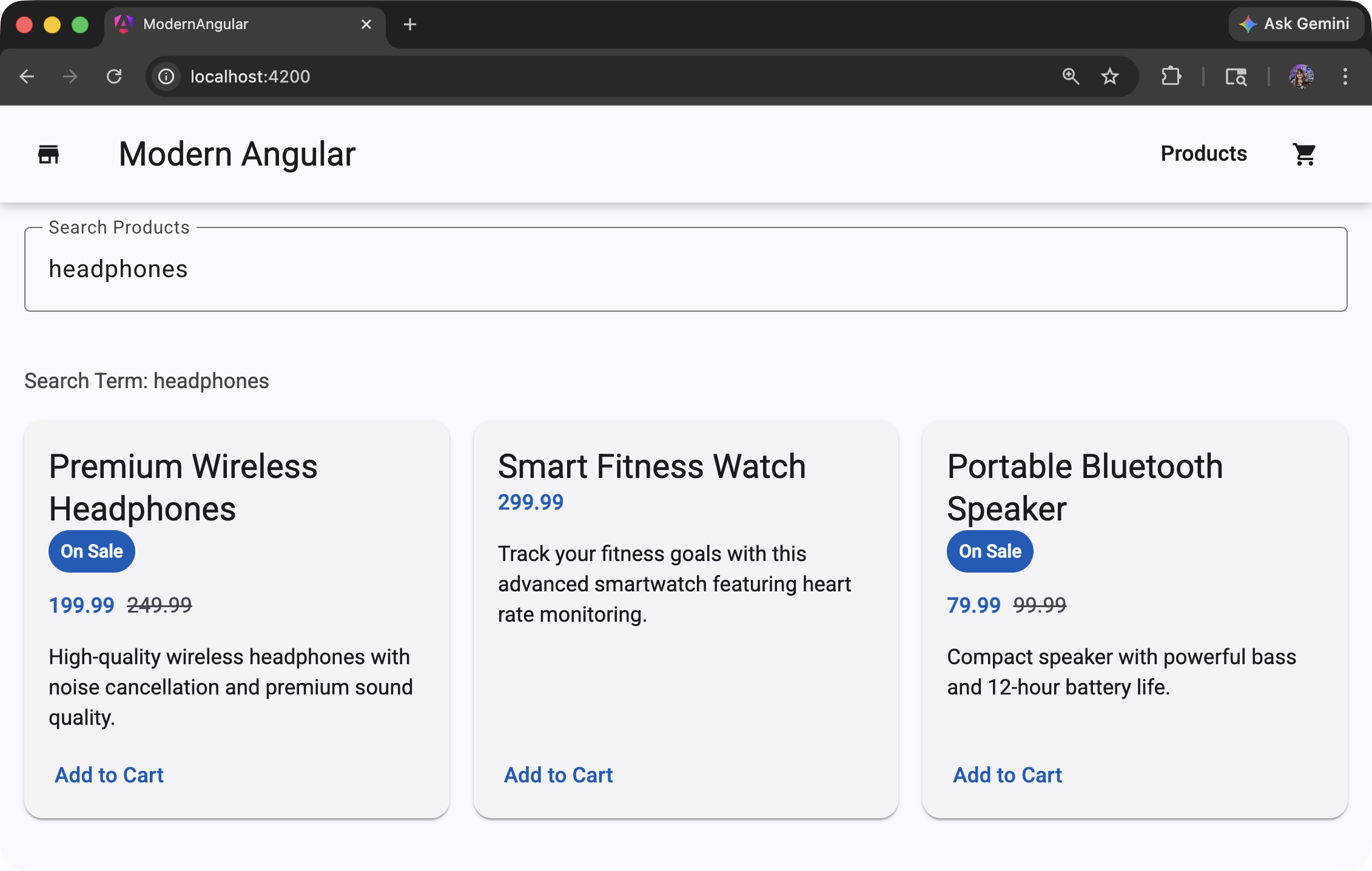
mat-form-fieldwithappearance="outline"renders a Material Design outlined input fieldmatInputis a directive that connects the native<input>to the Material form fieldmat-labelprovides a floating label for the input[(ngModel)]="searchTerm"is the two-way binding that connects the input to our signal- The search preview paragraph reads
searchTerm()to display the current value aria-live="polite"ensures screen readers announce changes to the search preview- We are not filtering yet — only storing the search term for now
How ngModel Works with Signals
The [(ngModel)] syntax is often called “banana in a box” because of the combination of square brackets and parentheses: [( )]. It is shorthand for combining input and output binding in one line.
The expanded mental model looks like this:
1
2
3
4
5
<input
  matInput
  [ngModel]="searchTerm()"
  (ngModelChange)="searchTerm.set($event)"
/>
This means:
[ngModel]="searchTerm()"— reads the signal value and populates the input field(ngModelChange)="searchTerm.set($event)"— listens for changes and updates the signal with the new text
In Angular v17+, template binding understands writable signals directly, so the shorthand [(ngModel)]="searchTerm" works without writing the expanded version. Angular handles the read and write automatically.
The flow is:
- The signal value populates the field on render
- The user types in the field
- The signal is updated with the new text
- Any expression that reads
searchTerm()updates automatically
Updating Signals with set and update
To demonstrate the two ways to programmatically change a signal, we can add helper methods to the component:
1
2
3
4
5
6
7
protected clearSearch(): void {
  this.searchTerm.set('');
}

protected trimSearch(): void {
  this.searchTerm.update((value) => value.trim());
}
The difference:
setreplaces the value entirely — useful when you know the exact new valueupdatecalculates the next value from the current one — useful when the new value depends on the previous state
Both methods trigger Angular to update any template expressions or computed signals that depend on searchTerm.
These methods are optional for this lesson. You can keep them as a quick demonstration or remove them to keep the component minimal.
Styling the Search Field
Add styles for the search input and preview text. Open src/app/products/products-grid/products-grid.scss:
1
2
3
4
5
6
7
8
9
.search-field {
  display: block;
  width: 100%;
}

.search-preview {
  margin: 0;
  color: var(--mat-sys-on-surface-variant);
}
Here is what each property does:
display: blockon.search-field— makes the Material form field behave as a block element so it respects width settingswidth: 100%— stretches the search input to fill its container horizontallymargin: 0on.search-preview— removes default paragraph margins so the preview text sits tightly below the inputcolor: var(--mat-sys-on-surface-variant)— uses a softer Material Design color token so the preview text has secondary importance
Summary
In this lesson, we used a writable signal for local search state and connected it to a Material Design input field:
- Created a writable signal with
signal('')to hold the search term - Bound the input with
[(ngModel)]="searchTerm"for two-way binding - Read the signal in the template with
searchTerm() - Learned the difference between
set(replace) andupdate(transform) for changing signal values
Next Lesson
In the next lesson, we will use this same searchTerm signal to create a filtered products list with computed(). The product grid will react to user input and show only products that match the search term — all without manual subscriptions or imperative filtering code.
Related: Check the Modern Angular Course for the complete curriculum and source code.